• Skip to content
  • Skip to primary sidebar

Header Right

  • Home
  • About
  • Contact

Quickbooks

How QuickBooks Online Helps You Track Mileage

April 20, 2022 by admin

qb-recordsWith gas prices so high, you need to track your travel costs as closely as possible. Consider getting a tax deduction for your business mileage.

If you drive even a little for business, it’s easy to let mileage costs slide. After all, it’s a pain to keep track of your tax-deductible mileage in a little notebook and do all the calculations required. If you do rack up a lot of business miles, you probably forget to track some trips and end up losing money.

QuickBooks Online offers a much better way. Its Mileage tools include simple fill-in-the-blank records that allow you to document individual trips. You can either enter the starting point and destination and let the site calculate your mileage and deduction or enter the number of miles yourself.

If you use QuickBooks Online’s mobile app, it can track your miles automatically as you drive (as long as you have the correct settings turned on). Here’s a look at how all of this works.

Setting Up

To get started, click the Mileage link in QuickBooks Online’s toolbar. The screen that opens will eventually display a table that contains information about your trips, but you need to do a little setup first. Click the down arrow next to Add Trip in the upper right corner and select Manage vehicles. A panel will slide out from the right. Click Add vehicle.

quickbooks online tips

You’ll need to supply information about your vehicles before you can start entering trips.

You’ll need to supply the vehicle’s year, make, and model. Do you own or lease it, and on what date was the vehicle purchased or leased and put into service? Do you want to have your annual mileage calculated by entering odometer readings or have QuickBooks Online track your business miles driven automatically? When you’re done making your selections and entering data, click Save.

Entering Trip Data

You can download trips as CSV files or import them from Mile IQ, but you’re probably more likely to enter them manually. Click Add Trip in the upper right corner. In the pane that opens, you’ll enter the date of the trip and either the total miles or start and end point. You’ll select the business purpose and vehicle and indicate whether it was a round trip. When you’re done, click Save. The trip will appear in the table on the opening screen, and your current possible total deduction will be in the upper left corner, along with your total business miles and total miles.

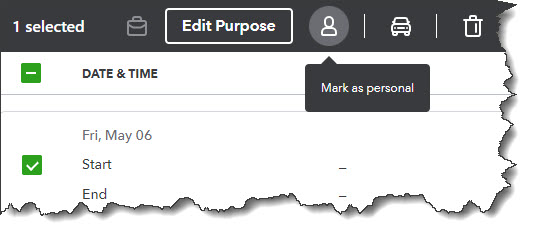
If you want to designate a trip as personal, click the box in front of the trip in that table. In the black horizontal box that appears, click the icon that looks like a little person, then click Apply. Now, the trip will appear in the Personal column and will not count toward your business tax-deductible mileage.
quickbooks online tips

When you select a trip in the Mileage table, you can mark it as personal so it’s not included in your business tax-deductible miles.

Personal Trips Can Count, Too

If you use your vehicle(s) for personal as well as business purposes, tracking some of those miles can also mean a tax deduction. For tax year 2022, you can deduct 18 cents per mile for your travel to and from medical appointments. Note: Medical mileage is only deductible if medical exceeds a certain percent of AGI. Be sure to check with the IRS yearly tax code, as they update the mileage amounts annually.

And if you do volunteer work for a qualified charitable organization, the miles you drive in service of it can be deducted at the rate of 14 cents per mile. You can also claim the cost of parking and tolls, as long as you weren’t reimbursed for any of these expenses. Obviously, the IRS wants you to keep careful records of your charitable mileage, and QuickBooks Online can provide them.

QuickBooks Online doesn’t track these deductions, but you’ll at least have a record of the miles driven.

Auto-Track Your Miles

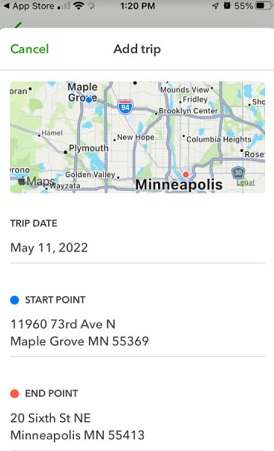
The easiest way to track your mileage in QuickBooks Online is by using its mobile app. You can launch this and have it record your mileage automatically as you’re driving. Versions are available for both Android and iOS, and they’re different from each other. They also have more features than the browser-based version of QuickBooks Online, like maps, rules, and easier designation of trips as business or personal.
quickbooks online tips

The iOS version of Mileage in the QuickBooks Online app

In both versions, you’ll need to click the menu in the lower right corner after you’ve opened the QuickBooks Online app and select Mileage. Make sure Auto-Tracking is turned on. Your phone’s location services tool must be turned on, too. There are other settings that vary between the two operating systems. You can search the help system of either app to make sure you get your settings correct if the onscreen instructions aren’t clear enough.

Of course, you won’t see the fruits of your mileage deductions until you file your 2022 taxes. But you can factor these savings in as you’re doing your tax planning during the year. Please let us help if you’re having any trouble with QuickBooks Online’s Mileage tools, or if you have questions with other elements of the site.

Filed Under: Quickbooks

8 QuickBooks Online Tips

October 20, 2021 by admin

Two Businesswomen Meeting In OfficeThere are always more things to learn about the applications we use every day. Here are some tips for expanding your use of QuickBooks Online.

We tend to fall into the same old patterns once we’ve learned how to make a computer application work for us. We learn the features we need and rarely venture beyond those unless we find we need the software or website to do more.

QuickBooks Online is no exception. It makes its capabilities known through an understandable system of menus and icons, labeled columns and fields, and links. But do we really see what else it can do? Expanding your knowledge about what QuickBooks Online can do may help you shave some time off your accounting tasks and better manage the forms, transactions, and reports that you work with every day. Here are some tips.

Edit lines in transactions. Have you ever been almost done with a transaction and realize you need to make some changes farther up in the list of line items? Don’t delete the transaction and start over. QuickBooks Online comes with simple editing tools, including:

  • Delete a line. Click the trash can icon to the right of the line.
  • Reorder lines. Click the icon to the left of the line, hold it, and guide it to the new position. This is tricky. You may have to work with it a bit.
  • Clear all lines and Add lines. Click the buttons below your line items, to the left.

qb tips

Click the More link at the bottom of a saved transaction to see what your options are.

Explore the More menu. Saved transactions in QuickBooks Online have a link at the bottom of the screen labeled More, as pictured above. Click it, and you can Copy the transaction or Void or Delete it. You can also view the Transaction journal, which displays the behind-the-scenes accounting work, and see an Audit history, which lists any actions taken on the transaction.

Create new tabs. Do you ever wish you could display more than one screen simultaneously so you can flip back and forth between them? You can. Right click on any link in QuickBooks Online, like Sales | Customers, and select Open link in new tab.

Use keyboard shortcuts. Not everyone is a fan of these, mostly because they can’t remember them. Hold down these three keys together to see a list: Ctrl+Alt+?. Some common ones include those for invoices (Ctrl+Alt+i) and for expenses (Ctrl+Alt+x).

Modify your sales forms. Do you need more flexibility than what’s offered in your sales forms? It may be there. Click the gear icon in the upper right and select Account and settings under Your Company. Click the Sales tab. In the section labeled Sales form content, notice that you can add fields for Shipping, Discounts, and Deposits by clicking on their on/off switches. You can also add Custom fields and Custom transaction numbers.

Add attachments. Sometimes it’s helpful to have a copy of a source document when you enter a transaction. To attach a receipt to an expense, for example, look in the lower left corner of the transaction. Click Attachments and browse your system folders to find the file, then double click on it.

qb tips

Record expenses made with credit cards. Who doesn’t use credit cards for expenses sometimes? You can track these purchases in QuickBooks Online, as pictured above. Click the gear icon in the upper right and select Chart of Accounts under Your Company, then click New in the upper right. Select Credit Card from the drop-down list under Account Type. Enter Owner Purchase in the Name field and then Save and Close. When you create an expense, select Owner Purchase as the Payment account.

Previous Transaction Button. Are you trying to find a transaction that you entered recently but don’t want to do a full-on search? With a transaction of the same type open, click the clock icon in the top left corner. A list of Recent Expenses will drop down. Click on the one you want.

Whether you’re new to QuickBooks Online or you’ve been using it for years, there’s always more to explore. We’d be happy to help you expand your use of QuickBooks Online by introducing you to new features, building on what you’re already doing on the site to improve your overall financial management. Call us to schedule some time.

QuickBooks will allow your business to track daily transactions and manage cash flow so you can oversee your finances with ease and precision. Call us at 208-215-2112 to get started now or request your free consultation online

Filed Under: Quickbooks

  • « Previous Page
  • Page 1
  • Page 2

Primary Sidebar

Search

Archives

  • March 2026
  • February 2026
  • January 2026
  • December 2025
  • November 2025
  • October 2025
  • September 2025
  • August 2025
  • July 2025
  • June 2025
  • May 2025
  • April 2025
  • March 2025
  • February 2025
  • January 2025
  • December 2024
  • November 2024
  • October 2024
  • September 2024
  • August 2024
  • July 2024
  • June 2024
  • May 2024
  • April 2024
  • March 2024
  • February 2024
  • January 2024
  • December 2023
  • November 2023
  • October 2023
  • September 2023
  • August 2023
  • July 2023
  • June 2023
  • March 2023
  • February 2023
  • January 2023
  • December 2022
  • November 2022
  • October 2022
  • September 2022
  • August 2022
  • July 2022
  • June 2022
  • May 2022
  • April 2022
  • March 2022
  • February 2022
  • December 2021
  • November 2021
  • October 2021
  • September 2021
  • August 2021
  • July 2021
  • June 2021
  • May 2021
  • April 2021
  • March 2021
  • February 2021
  • January 2021
  • December 2020
  • November 2020
  • October 2020
  • September 2020
  • August 2020
  • July 2020
  • June 2020
  • May 2020
  • April 2020
  • March 2020
  • February 2020
  • January 2020

Categories

  • Best Business Practices
  • Business Tax
  • Estate and Trusts
  • Individual Tax
  • Investments
  • Quickbooks
  • Real Estate
  • Retirement

Copyright © 2021 · https://www.scbusinessadvisory.com/blog